Docs › Getting started
Automating Your First Response
Use Automations to reply to customers instantly when they message you, using a ready-made template or your own automation.
A prompt response to a customer's first message creates a positive first impression and builds trust in your business. With Automations, Vaanexa replies to customers instantly, including when your team is busy or offline.
You can create an automation in either of two ways:
- Use a template: Start from a ready-made automation and adapt it to your business.
- Start blank: Build your own automation step by step.
Open Automations
In the left menu, under AUTOMATE, click Automations.
The Automations page contains the following sections:
| Section | Description |
|---|---|
| Build with AI | Describe the automation you require, and AI creates it for you. |
| Use a template | Choose from ready-made automations that you can edit and use. |
| Start blank | Build your own automation from the beginning. |
| Live / Drafts / Failed runs | The number of automations that are live, saved as drafts or have failed runs. |
| Your automations | A list of all your automations, which can be filtered by All, Live, Draft or Off. |
Use a template
- On the Automations page, click Use a template.
- In the Start from a template window, select a category: All, Sales, Support, Payments or Retention.
- Review the trigger, description and steps shown on each template card.
- On the template you want to use, click Use template.
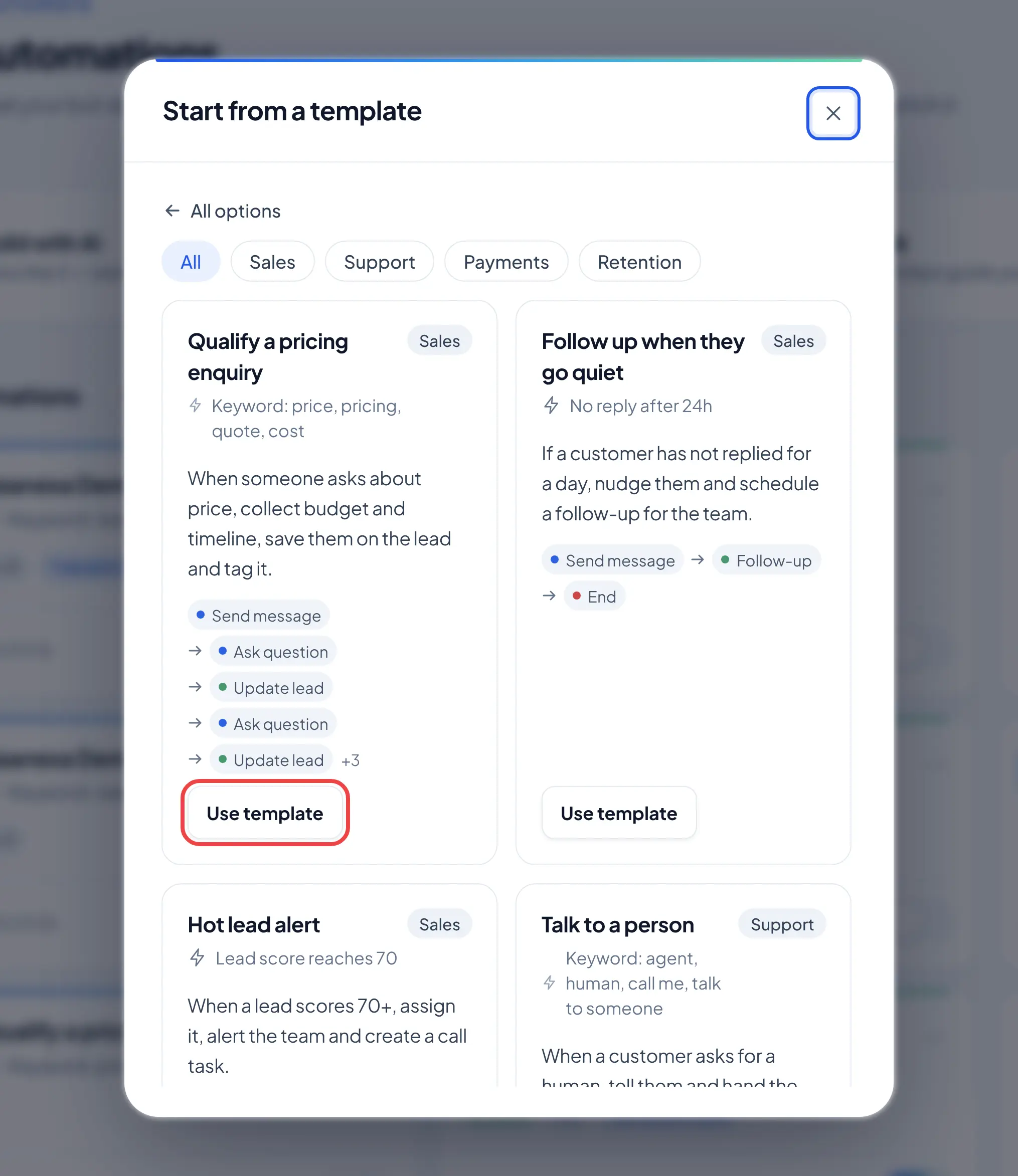
The template opens in the Flow Builder, where you can review and edit each step before publishing.
Create your own automation
- On the Automations page, click Start blank or New automation.
- At the top of the Flow Builder, enter a name for the automation.
- Under Trigger, select the event that starts the automation. For a first response, select Any new message.
- From the Talk section in the left panel, add a Send message step.
Edit the message
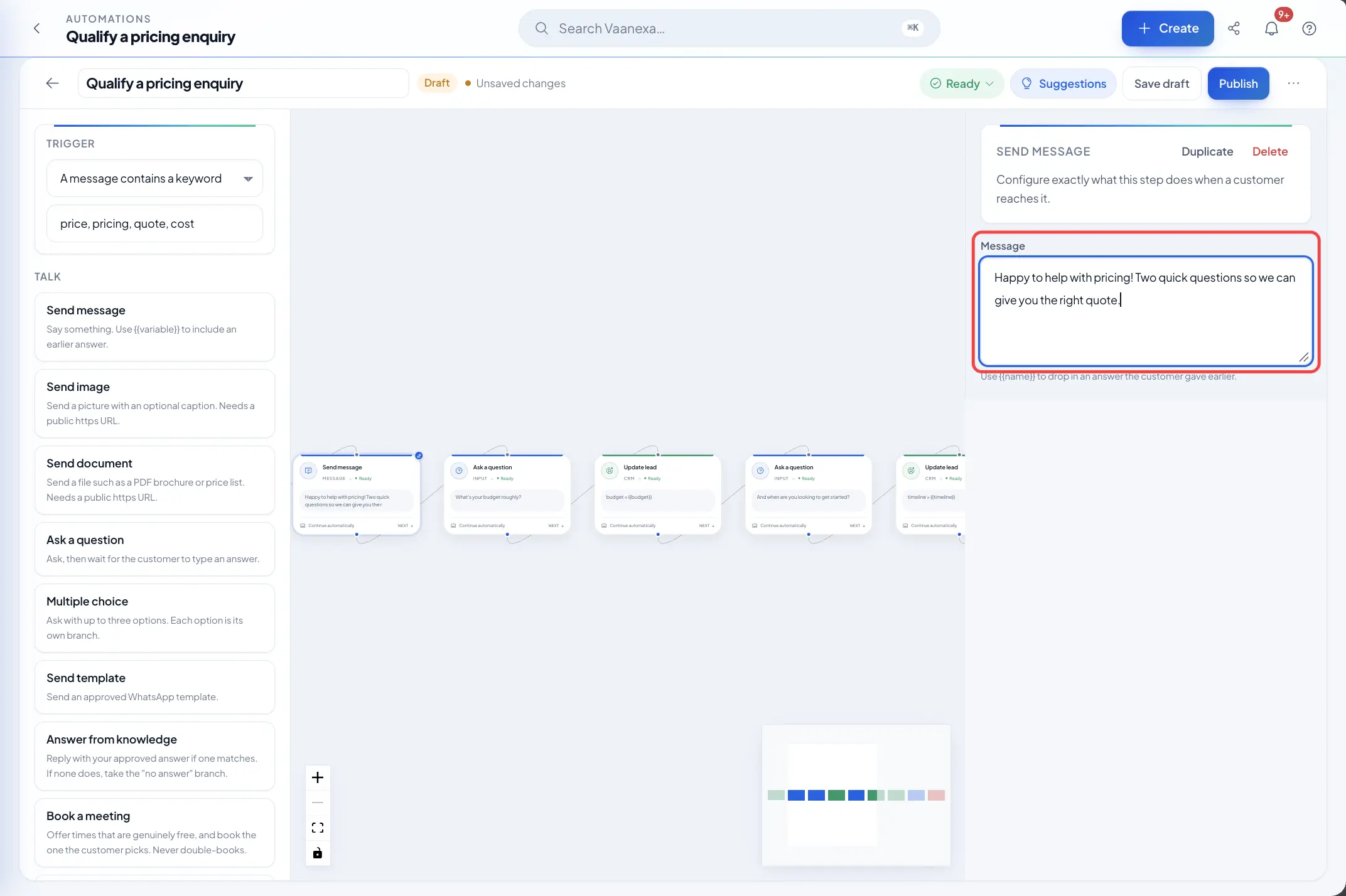
- In the Flow Builder, click the Send message step. The step settings open in the right panel.
- In the Message field, replace the default text with a message that suits your business. For example: "Thank you for contacting us. A member of our team will respond to you shortly."
- Click Save draft to save your changes.
Publish and switch on the automation
- Confirm that the status at the top of the Flow Builder shows Ready. If it does not, click Suggestions to review the items that require attention.
- Click Publish.
- Switch on the toggle next to Publish.
The automation is now Live and responds automatically whenever a customer sends a message.
You can also switch an automation on or off at any time from the Automations page, using the toggle on its card.
What's next
With your first response automated, learn how to reply to customers from the Inbox.