Docs › Getting started
Getting Customers to Message You
Share your Business page, WhatsApp chat link and QR codes so customers can easily start a conversation with your business.
To receive more enquiries, customers need a simple way to reach your business. Vaanexa provides ready-to-share links and QR codes that open your Business page or a WhatsApp chat with your business. You can place them on posters, social media bios, visiting cards, receipts and at your shop counter.
All your links and QR codes are available in Settings > Links & sharing.
| Link | Description |
|---|---|
| Business page | A public page that displays your logo, products or services, documents and an enquiry form. Every enquiry is added as a lead. |
| WhatsApp chat link | Opens a WhatsApp chat with your business number, with a greeting already typed. |
| Your referral link | A personal version of the Business page. Enquiries received through it are assigned to you. |
Open Links & sharing
- In the left menu, click Settings.
- Click Links & sharing.
Business page
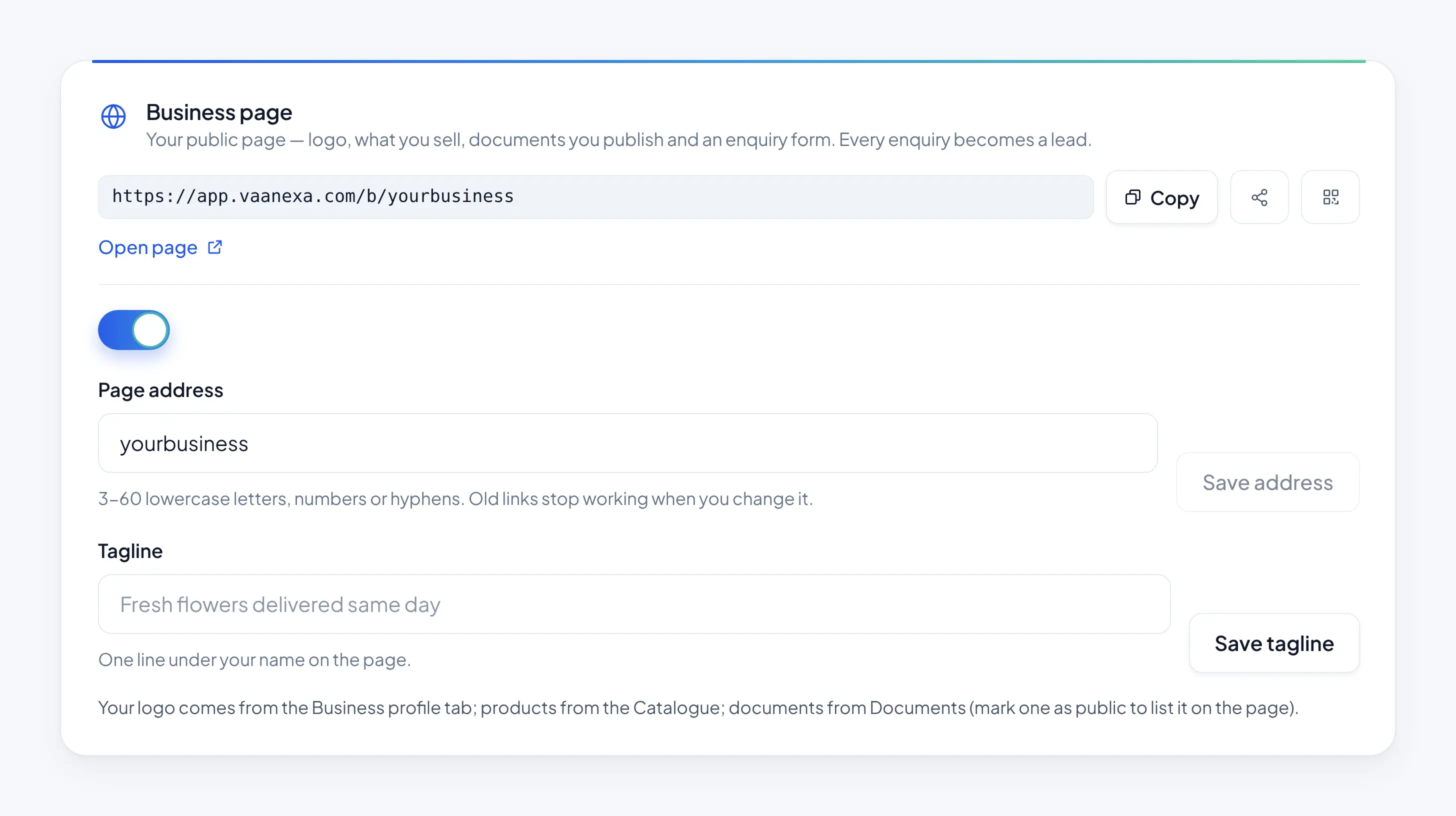
The Business page is a public web page for your business. When a customer submits the enquiry form on this page, Vaanexa automatically adds them as a lead.
Set up your Business page link
Under Business page, the following options are available:
- Copy: Copies the page link.
- Share icon: Shares the link directly.
- QR icon: Displays the QR code for the page. Click Download PNG to save it.
- Open page: Opens your page as customers see it.
To set the page address and tagline:
- In Page address, enter the address for your page, such as your business name.
- Click Save address.
- In Tagline, enter a short line about your business. It appears below your business name on the page.
- Click Save tagline.
Choose a page design
Under Page design, select one of four designs: Minimal, Maximal, Modern or Classic. All designs use your brand colours, and your content remains unchanged when you switch between them.
- Click Preview to view a design.
- Click Use to apply it.
The design currently in use displays a Live label.
Add content to your page
Under Page content, enter the following details about your business:
| Field | Description |
|---|---|
| Headline | The main line displayed at the top of the page. If left empty, your tagline is displayed. |
| About | A short description of your business. |
| Why choose us | Up to 6 reasons why customers should choose your business. Click Add to add each reason. |
| Testimonials | Up to 8 reviews from your customers. Click Add to add each review. |
| Photo gallery | Up to 12 photos. The first photo is displayed as the main image. Click Add photo to upload. |
Once complete, click Save content. To review the page, click Open live page.
WhatsApp chat link
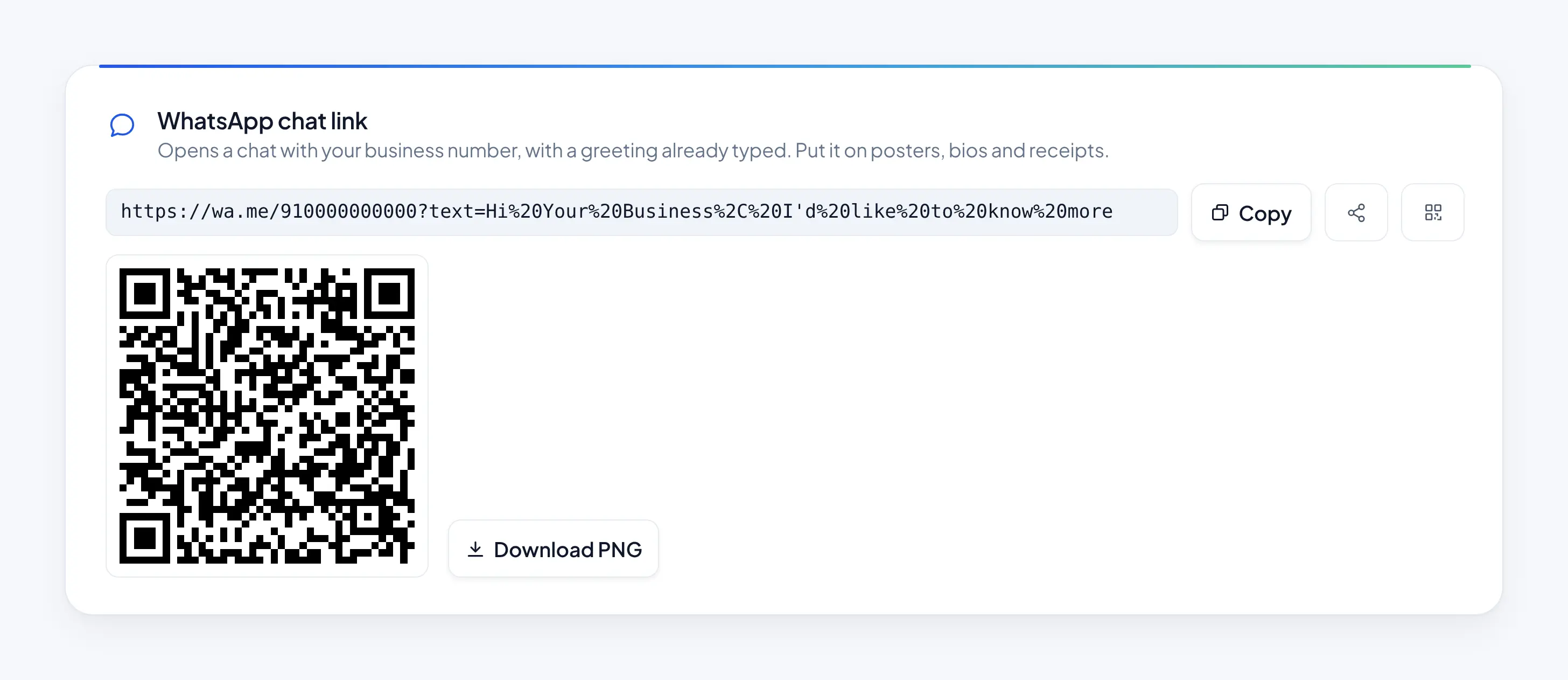
The WhatsApp chat link opens a chat with your business number, with a greeting already typed. The customer only needs to tap send to begin the conversation.
Under WhatsApp chat link, the following options are available:
- Copy: Copies the link.
- Share icon: Shares the link directly.
- QR icon: Displays the QR code for the link. Click Download PNG to save it.
Your referral link
Each team member has a personal referral link. It opens your Business page, but any enquiry received through it is assigned to that team member. This is useful for sales team members who share the page with their own customers.
Under Your referral link, the following options are available:
- Copy: Copies your link.
- Share icon: Shares the link directly.
- QR icon: Displays the QR code for your link.
This section also shows the number of enquiries received through your link.
What's next
With your links in place, learn how to reply to customers from the Inbox.