Docs › Getting started
Responding to Messages
Use the Vaanexa Inbox to find conversations, reply to customers with text or AI help, call them, and hand chats between your team and AI.
The Inbox brings every customer conversation from WhatsApp, Instagram and Facebook into a single place. Vaanexa AI can respond to customers automatically, and your team can step in at any time to reply personally.
To open it, click Inbox in the left menu.
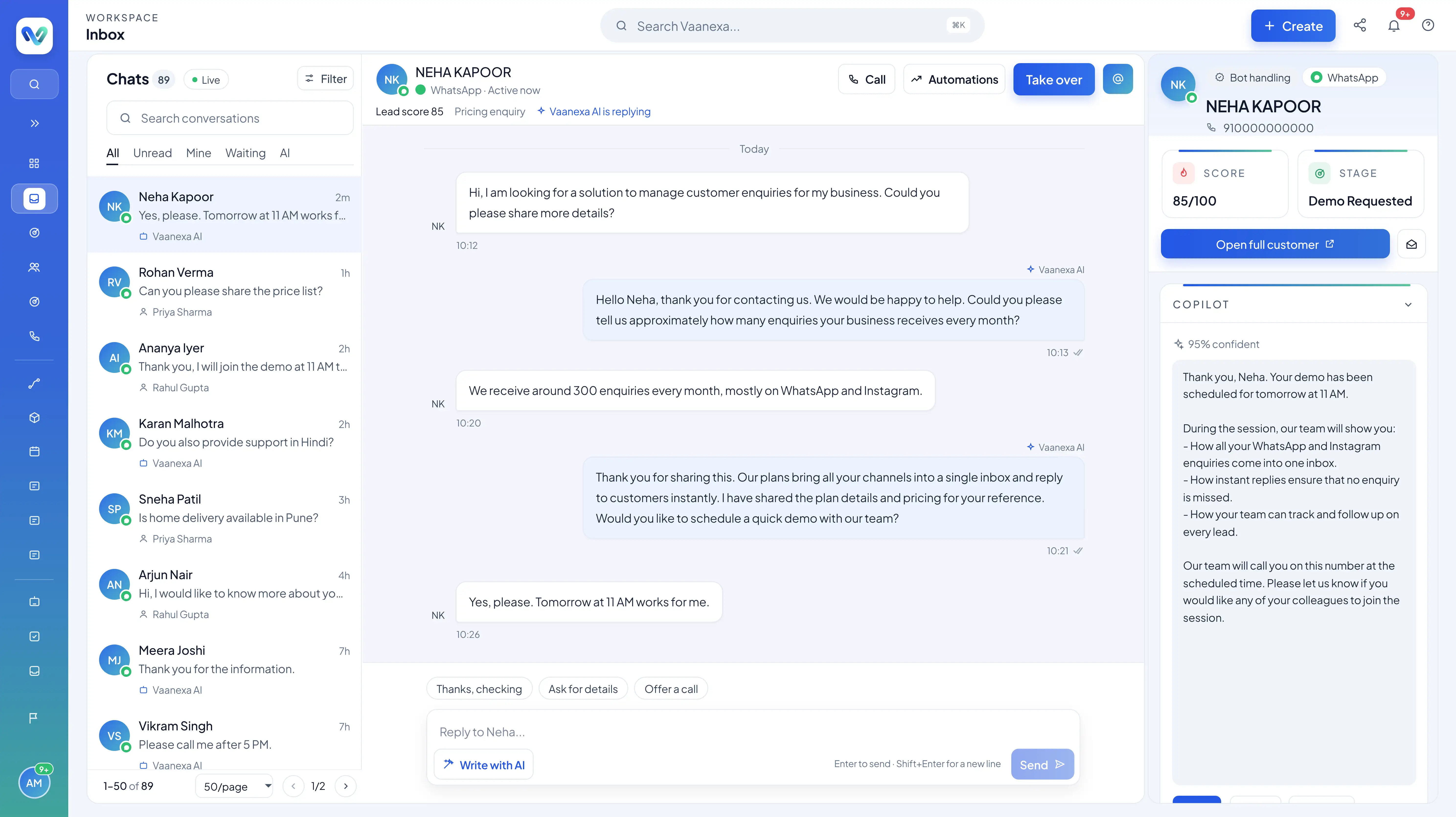
The Inbox is divided into three sections:
| Section | Description |
|---|---|
| Chats | A list of all conversations. Use the All, Unread, Mine, Waiting and AI tabs, Search conversations or Filter to find a chat. |
| Conversation | The messages exchanged with the selected customer, along with the Call, Automations and Take over options. |
| Customer details | The customer's score, stage and channel, along with reply suggestions from Copilot. |
Respond to a message
- In the Chats list, click the conversation you want to open.
- Click Take over to handle the conversation personally. Vaanexa AI stops replying while you are handling the chat.
- Type your reply in the reply box, or use the suggestion provided by Copilot.
- Send the message.
- Once you have finished assisting the customer, click Hand back to AI so that Vaanexa AI resumes responding.
What's next
You have completed the Quick Start guides. Refer to the Glossary of Terms for definitions of common Vaanexa terms, or explore the Inbox section of the Help Centre to learn more about each feature.